AI and Digital Skills
Student Self-Help Guide: Using Blackboard Ultra
A step-by-step guide to the things students get stuck on most often — work through the steps yourself, or use this page to jump straight to what you need.
Still stuck after trying these steps? Each topic below ends with guidance on who to contact next — usually your Subject Coordinator for anything about content, marks or deadlines, or the IT Service Desk for a technical fault that doesn't go away.
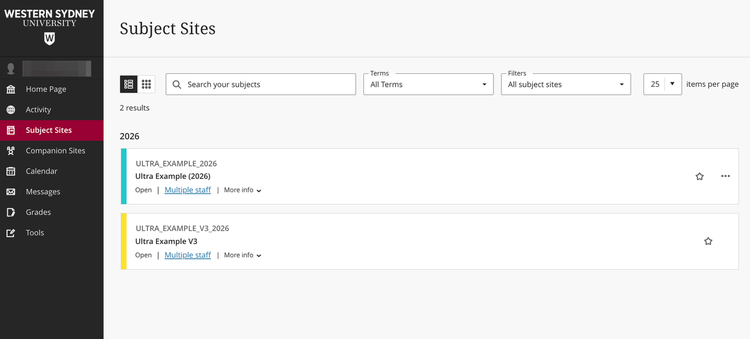
Can't find your subject?
- Go to ‘Subject Sites’ in the menu on the left-hand side of the screen.
- Look for your subject in the list shown.
If it's not there: subjects only appear once your Subject Coordinator has published the site, and once the teaching period has officially started.
| columns |
|
Subject looks different to last semester?
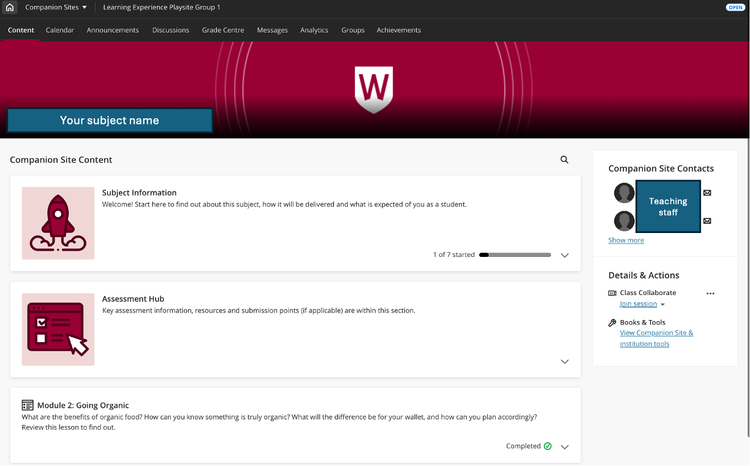
WSU is running a mixed environment while subjects move across to Ultra, so you may have some subjects in the new Ultra Course View and others still in the older Original Course View — both are normal right now.
- Ultra Course View: a single content stream down the centre of the page, with simplified icons at the top.
- Original Course View: the older layout, with a more traditional menu structure.
| columns |
|
This is the highest-stakes part of using Ultra, so it pays to know exactly what to check before you panic.
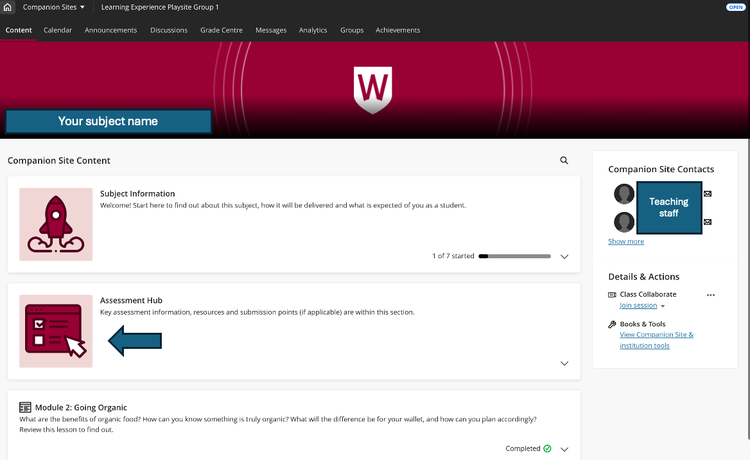
Can't find where to submit?
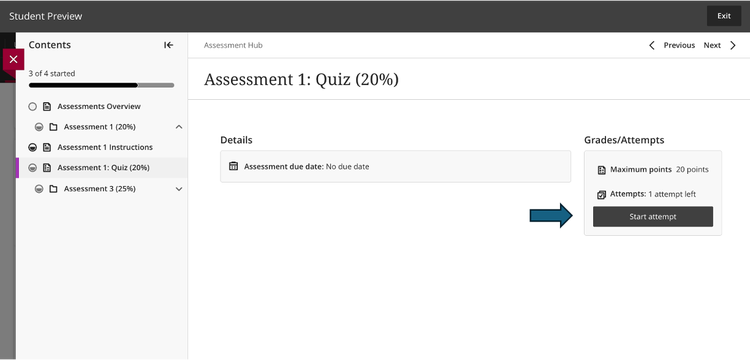
- Open Course Content and check the Assessment Hub module
- Check inside any folders or learning modules related to the assessment task submission points are sometimes embedded inside these rather than sitting on their own.
If you genuinely can't find it, it may not be released yet — check with your Subject Coordinator rather than assuming something is broken.
| columns |
|
| columns |
|
Not sure your submission went through?
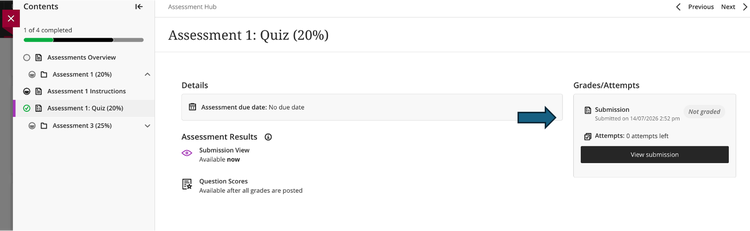
After a successful submission, Ultra shows a confirmation message, and the attempt becomes visible with a timestamp.
- Reopen the assignment - it should show a "Submitted" status along with the file or text you sent.
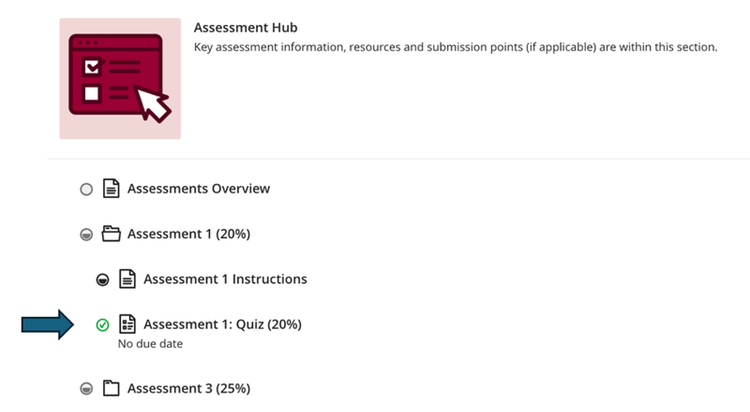
- A green arrow will show against assessments that have been submitted
| columns |
|
|
Want to resubmit or fix a mistake?
This depends entirely on how your Subject Coordinator has set up the assignment.
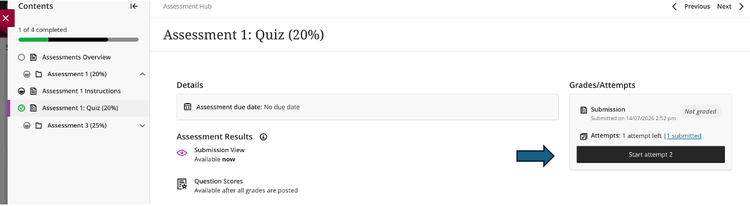
- If multiple attempts are allowed, you'll see a "Start New Attempt" option on the assignment page.
- If not, and the deadline hasn't passed, contact your Subject Coordinator directly.
| columns |
|
Assignment says overdue but still lets you submit?
This is expected Ultra behaviour, not a glitch. A submission point can stay open after the due date if your Subject Coordinator hasn't closed it -but any late penalty or whether it's accepted at all is determined by your subject's own policy. Check your Subject Outline or ask your Subject Coordinator.
Still stuck? For anything about deadlines, extensions, resubmission, or marks, your Subject Coordinator makes that call. For a technical fault during submission that won't go away, contact the IT Service Desk.
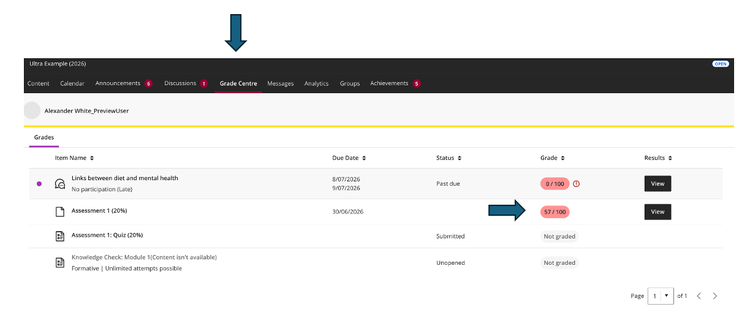
Can't see your grade?
- Check the Grades icon in your subject's left-hand menu.
If an assessment shows no grade, it's most likely still being marked — there's no way to speed this up, and it doesn't mean anything has gone wrong.
| columns |
|
Finding feedback
-
Click into the specific grade entry — feedback (including any rubric, if one was used) appears on that detail view rather than the summary list.
columns 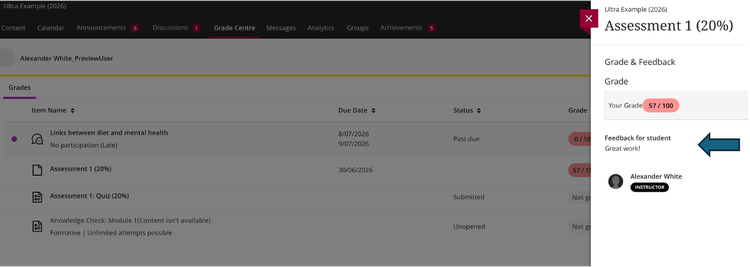
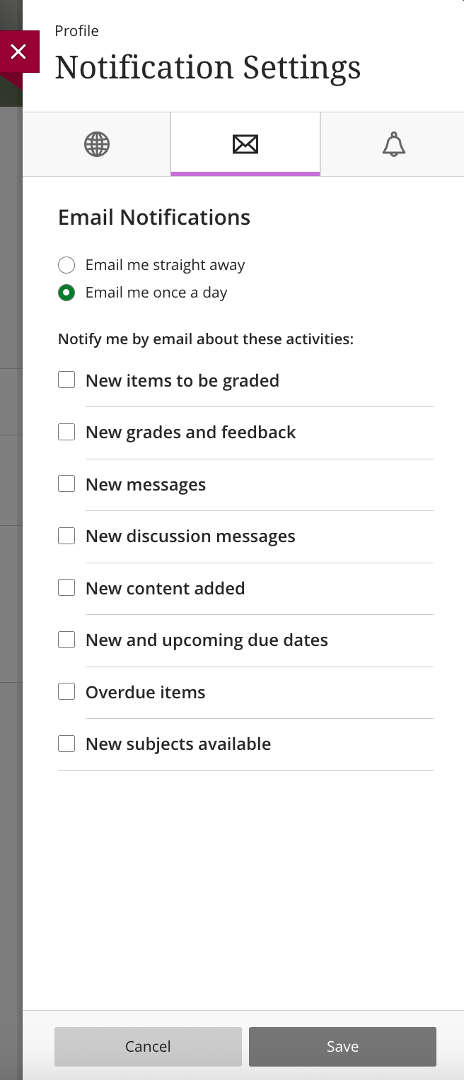
Choose the notifications best for you
-
Open your account's information and settings via your profile icon, top left
-
Check which events are set to send an email, Activity Stream, or in-app alerts, and adjust as needed.
columns 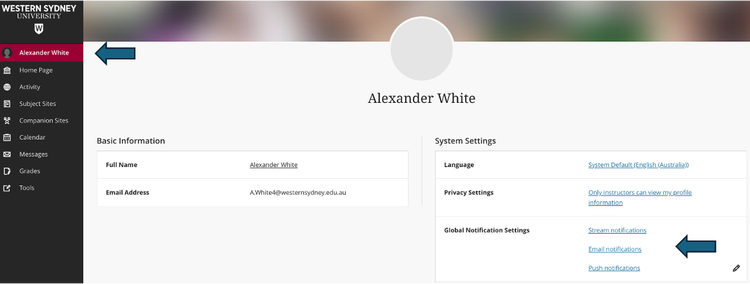
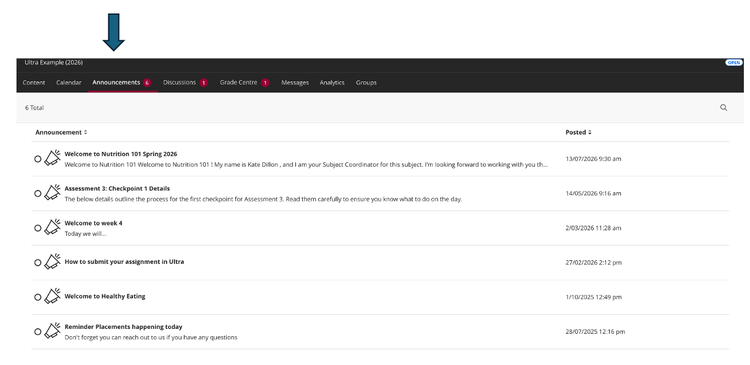
Can't find announcements?
There's no separate "inbox" for these. Announcements appear in your Activity Stream, and may also have their own Announcements icon if your Subject Coordinator has turned it on.
| columns |
|
Still stuck? If notifications still aren't arriving after checking your settings, that's worth a check with the IT Service Desk — it may be an account-level issue.
Page looks broken or won't load?
This is often an outdated browser or a cached page rather than a fault with Ultra itself.
- Try a hard refresh of the page.
- Clear your browser cache.
- Try a different supported browser — Chrome or Edge are the most reliable.
If the problem follows you across browsers, it's time to contact the IT Service Desk.
Can't see content you expect to be there?
Three different situations all look exactly the same from where you're sitting:
- The content is deliberately hidden.
- The content is release-conditioned — set to appear on a certain date or once another task is done.
- The content is genuinely missing or misconfigured.
There's no way to tell these apart just by looking, so if you believe something should be visible, the right move is to check with your Subject Coordinator rather than assume it's broken.
Works on your laptop but not the app?
The Blackboard mobile app has reduced functionality compared to using a full browser — some content types and interactive tools don't render properly on it.
- Before treating it as a fault, try the same task in a browser first.
Still stuck? A technical fault that survives a browser change and a fresh device is the one to take to the IT Service Desk. Anything about why content is or isn't visible goes to your Subject Coordinator.
Don't know what group you're in?
Group allocation is set up differently in every subject, so it isn't always obvious from the main navigation.
- Check the Groups icon in the subject's left-hand menu, if the subject uses one.
- Otherwise, check the instructions for the relevant group assignment — your group is often referenced there directly.
Can't join the online class?
This is most commonly a browser permissions issue, or trying to join before the session has opened.
- Check your browser has allowed microphone and camera access.
- Confirm the session's scheduled start time.
- If the subject uses Collaborate, run the connection and audio check tool that's usually available before joining.
Still stuck? Questions about which group you've been allocated to go to your Subject Coordinator. Ongoing audio or video problems that survive a permissions and browser check go to the IT Service Desk.
✍️ Events and Workshops
Looking to upskill your knowledge of digital tools? Check out the Library Learning Hub's digital skills programs.
🛠️Tools
Wanting to become more efficient with your digital technology use? Check out Knowledge Articles and the IT Guide for quick tech troubleshooting. Learn about how you'll be using Feedback Fruits on your learning management system Blackboard.
All Western Students now have access to Adobe Creative Campus - explore creative tools with generative AI capabilities for a wide range of applications such as graphic design, video editing, web development, and photography.
💡 The Adobe Creative Campus
Did you know that Western Sydney University is the first Adobe Creative Campus University in New South Wales? Watch the short video below to learn about all the apps you have access to.
📖 Digital Literacy Guide
Download the PDF Guide for some quick tips on building your digital literacy. Topic-by-topic PDFs can be accessed at How-To Guides.
Quick Links
Appointments[[button]]
Skills Workshops and Events[[button]]
Assignment Planner[[button]]
How-To Guides[[button]]
Library Learning Hub on Ultra[[button]]
Generative AI[[button]]