Assistive Technology on Campus

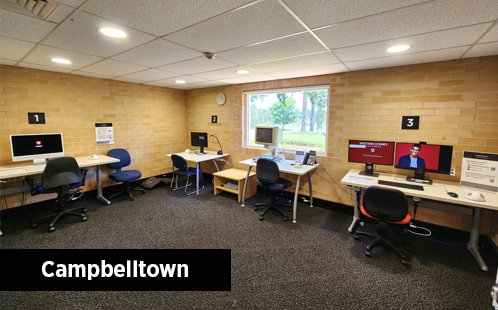
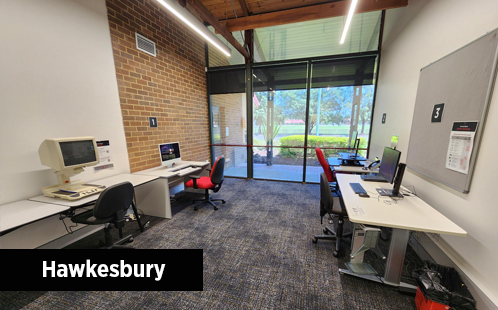
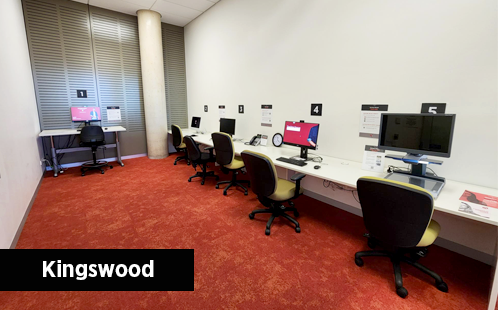
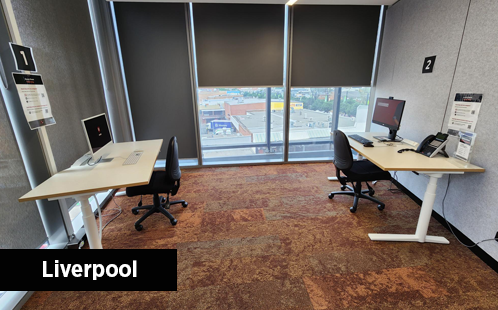
Access rooms
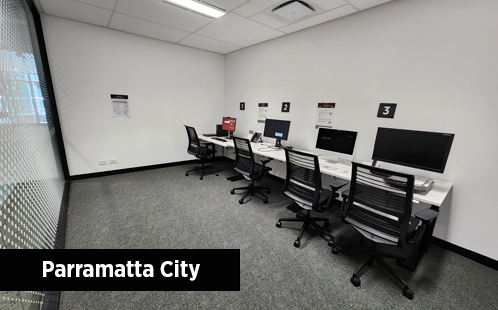
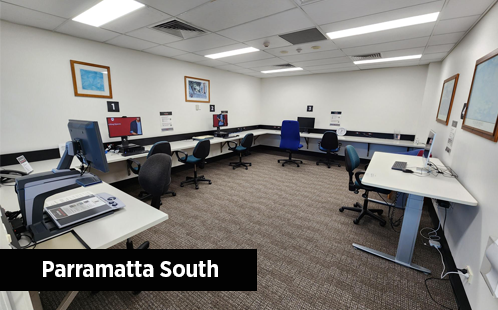
Access rooms are available on all Western Sydney University campuses and provide students with access to specialist Assistive Technology (AT) and adaptive equipment. Access rooms that are located in the library are open during regular library hours, except during formal exam periods. Access to all rooms is granted by swipe card entry only.
Please speak to your Disability Advisor if you require these services.
Locations
- Bankstown City - BCC 1.4.18
- Campbelltown - 1.G.04 (Library)
- Hawkesbury - G1.G.77 (Library)
- Kingswood - T.G.22 (Library)
- Liverpool - 3.2.02
- Parramatta City - 01.1.02
- Parramatta South - EN.G.10 (Library)
Technology
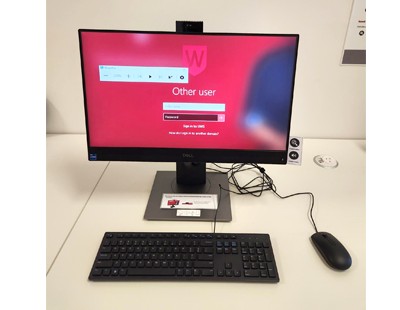
Visit the Assistive Technology Guides - Master List to explore how to get started with the installation and use of the technology listed below.
- Genio (formerly Glean).
- Natural Reader.
- Read&Write (unlicensed, so freely available tools only).
- OrbitNote (unlicensed, so freely available tools only).
- Microsoft Office 365 Learning Tools - including access to Dictation, Read Aloud, Immersive Reader, Translation and Transcription.
- Dragon Professional.
- Screen Magnification - from log-in screen on certain computers.
- NVDA screen reader - from log-in screen on certain computers.
Visit the Assistive Technology Guides - Master List to explore how to get started with the installation and use of the technology listed below.
- Genio (formerly Glean).
- Natural Reader.
- Read&Write (unlicensed, so freely available tools only).
- OrbitNote (unlicensed, so freely available tools only).
- Microsoft Office 365 Learning Tools - including access to Dictation, Read Aloud, Immersive Reader, Translation and Transcription.
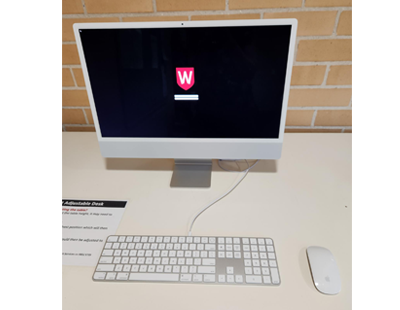
- VoiceControl.
- VoiceOver screen reader.
Other technologies available on specific computers and campuses includes:
- Webcams are available on each computer for online classes and exams.
- Flatbed scanners are available on some campuses and can be used to digitise content.
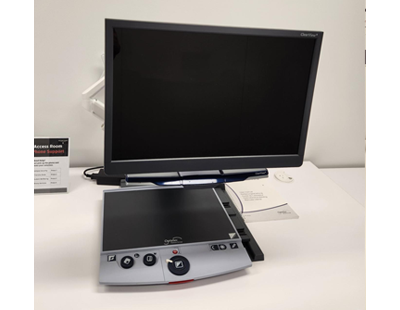
- Optelec Clearview (CCTV enlarger).
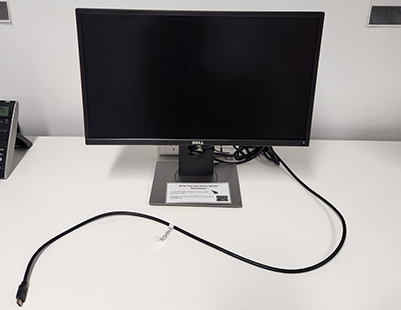
There is a BYOD workstation available in all Access Rooms other than Bankstown and Liverpool. The BYOD workstation is set up to allow students to bring their own device to the Access Room.
We provide a monitor and HDMI cable to allow screen mirroring or extension. Students need to have a HDMI port on their device, or HDMI adaptor to use.
If students require an external keyboard or mouse, please remember to bring these along, and ensure they can work with and connect to the device they are using.
Using the Access Room
- Only students registered with Disability Service who have been granted access by their Disability Advisor, and Educational Support staff can use the Access Room.
- The Access Room's availability may vary during key academic periods, such as end-of-session and mid-session assessments, to accommodate specific needs. Any closures will be clearly communicated on the door with the relevant dates and times.
- Students can use the Access Room on any campus - which may be a campus closer to your home rather than the campus where you are studying your program.
Access Rooms play a pivotal role in levelling the academic playing field, fostering and empowering students with disabilities to achieve their educational goals with greater independence and confidence.
Your feedback is invaluable in enhancing the Access Room's environment and services. Please share your thoughts or suggestions using our Access Room Experience survey.
Need help?
- Technical issues can be raised with IT Support.
- Visit the Assistive Technology Guides - Master List and explore how to get started with the installation and use of the technology.
For further support please contact the AT Specialists directly on atspecialist@westernsydney.edu.au. - For discussions around personal adjustments and student behaviour contact the Disability Service. To speak with a Disability Advisor or to make an appointment you can call 1300 668 370 (option 5) or email disability@westernsydney.edu.au.
Computer labs and libraries
- Genio (formerly Glean) (opens in a new window) and Natural Reader (opens in a new window) can both be used through the web browser on any computer lab or library computer.
- Microsoft Office 365 and the Edge browser are available on any computer lab or library computer, so the Learning Tools are available for all to use.
- Please use a headset when listening to audio, to reduce disruption for students around you, and help maintain privacy. Please be careful if using dictation/voice control software as these rooms are not private spaces and your words may be heard by or disrupt others.
Staff computers
Staff are able to request access to different Assistive Technologies according to the Terms and Conditions for each program, as outlined in the different request forms. Access request forms for typical software available for staff use can be found on the Staff Access page.
Using AT for Exams
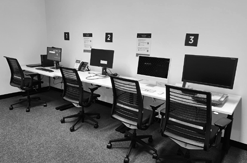
Planning to use AT in your exams? Explore the 'Using AT for Exams Guide' to get set up with your AT!